Contents
- Index
OmniMic software version 6
for OmniMic and OmniMic40k
(c) 2010-2025 Bill Waslo
OmniMic is simple to use.
While supporting sophisticated measurements with extensive built-in Help, you can still be up and making measurements in minutes.
Here are the initial steps:
Plug the OmniMic into a USB port of your Windows computer.
______________________________________________________________________________________
FOR FIRST USE ON THIS COMPUTER
(with original OmniMic hardware only -- not needed with OmniMic40k):
>> If necessary, get to the Desktop screen by clicking on the "Windows" button of the keyboard
>> Right-click on the small loudspeaker icon (usually on the bottom right corner of your screen). 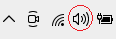
>> In the menu that pops up, select "Recording Devices". A form will pop up, click on the "OmniMic" entry, and then on the "Properties" button.
>> Click on the "Advanced" tab and for "Default Format", select 2-channel "DVD Quality" (48kHz). Then click "Ok" (twice).
>> You should repeat all the steps above with the OmniMic plugged into each USB ports you plan to use with OmniMic on your computer.
____________________________________________________________________________________________________
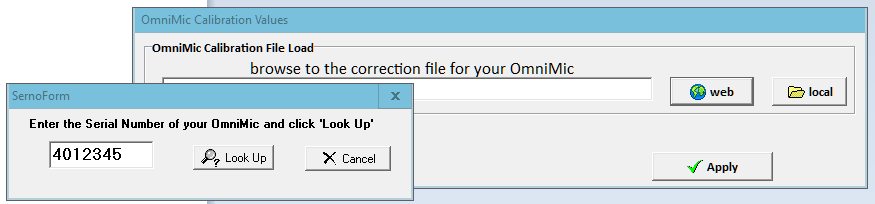
Select "Config>MICROPHONE serno" from the menu at the top of the OmniMic screen. If your computer is connected to Web, OmniMic software can download the associated calibration file for you. If you already have the ".omm" file downloaded locally from the Dayton Audio website you can just activate it with the "local" button.
____________________________________________________________
USING OMNIMIC
Choose the desired measurement type tabsheet by clicking on its labeled tab on the OmniMic screen.
If the title bar at the top specifies test signal tracks, play the file for that track through your audio system. Track files can be downloaded from the www.DaytonAudio.com website or can be easily generated from within OmniMic software. Or, if your computer soundcard is connected to your audio system, OmniMic can play the required test signal directly.
Position the OmniMic to pick up the sound. The graphs and meters will graph the measurement.
Adjust the display panel to the desired size and format the graphs as you desire.
what's new in OmniMic?
For help and information about each measurement type, select:
SPL Meter/Spectrum
Frequency Response
Oscilloscope
Harmonic Distortion
Reverberation
Bass Decay
...or read any of the Help topics listed in the bar to the left, including:
How to...
Making test signal WAV files
Troubleshooting
Frequently Asked Questions