Contents
- Index
OmniMic Adjustments
Index
The accuracy of each individual OmniMic is enhanced in software to account for frequency and sensitivity variations as determined during the production calibration process. This is done using data in an individual file corresponding to each microphone serial number. Omnimic hardware with serial numbers starting with "40" are Omnimic40k units.
Calibration Files:
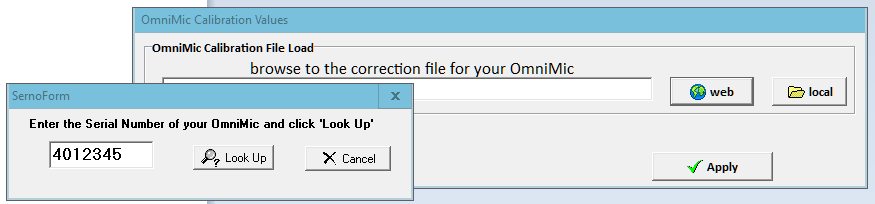
At installation: If your computer is connected to the interent, click on the main menu "Config>MICROPHONE serno" within the OmniMic software, then click the "Web" button, and enter your serial number and Omnimic will do the rest.
Calibration data can also be manually downloaded from the Dayton Audio website, according to the serial number that is printed on the microphone. The file (which has an extension type ".omm") should be saved onto a folder on any computer that the microphone will be used with.
To activate that calibration file for Omnimic software to use, select "Config>MICROPHONE serno" from the menu at the top of the screen. Click the button showing the yellow folder and browse to where you stored your ".omm" file. Then click "Apply".
Sensitivity Readjustment
Over time, the sensitivity of microphones could possibly drift to some degree. Provided reasonable care is taken to avoid exposure to high temperatures or humidity, their frequency response shapes typically remain stable.
The overall sensitivity of the microphone can be checked with a trusted microphone calibrator and body adaptor, and the OmniMic SPL/Spectrum display. If it is found to be in error, the sensitivity can be adjusted by up to several decibels with the control that appears when you select "Config>Adjust" from the menu at the top of the screen.

Using Multiple Microphones
The OmniMic software is able to work with several OmniMic microphones, though only with one at a time. Also only one instance of the OmniMic software can be properly run on a computer at a time. But an OmniMic microphone cable can be removed from the USB port of the computer while the software is running, and a different OmniMic can then be plugged in to go on working. There will be a short pause while the program recovers operation with the microphone and soundcard hardware.
But different OmniMics use different calibration files. So there is now an option in the Config menu for a "Microphone selector". This is a form that contains buttons and title blocks for up to 5 OmniMics. To set up for each, click on its title block (the round button at its left will then turn red) and then click on the "configure" menu in the selector form. You'll be prompted for a name or description of the mic, which could be something like "On Axis", "30 degrees", "nearfield" or the like. Then you will be given a file box for finding the calibration file for this microphone (which needs to be already on your computer).
After this is setup, you can quickly change between mics. Unplug the mic previously being used and plug in the new one. Then click on the name or button for that mic on the selector form and its calibration will be loaded for new measurements from that microphone.
_______
User IDs
You can assign your initials, name, email address, etc. to the "User ID". This will be attached to some files gnerated by OmniMic to identify who created them.